
After you complete an assigned trip, you can annotate the purpose for the trip, add any additional comments, and export the trip log for your records or for tax purposes.
Your fleet administrator can view and export annotated trips in the Trip History Report.
 |
With the Samsara Driver App, you can access trips from the last 30 days (or 7 days for German customers) using Trip Log. The Trip Log displays only trips that are assigned to the driver for the currently selected vehicle.
To view and annotate your completed trips, complete the following workflow:
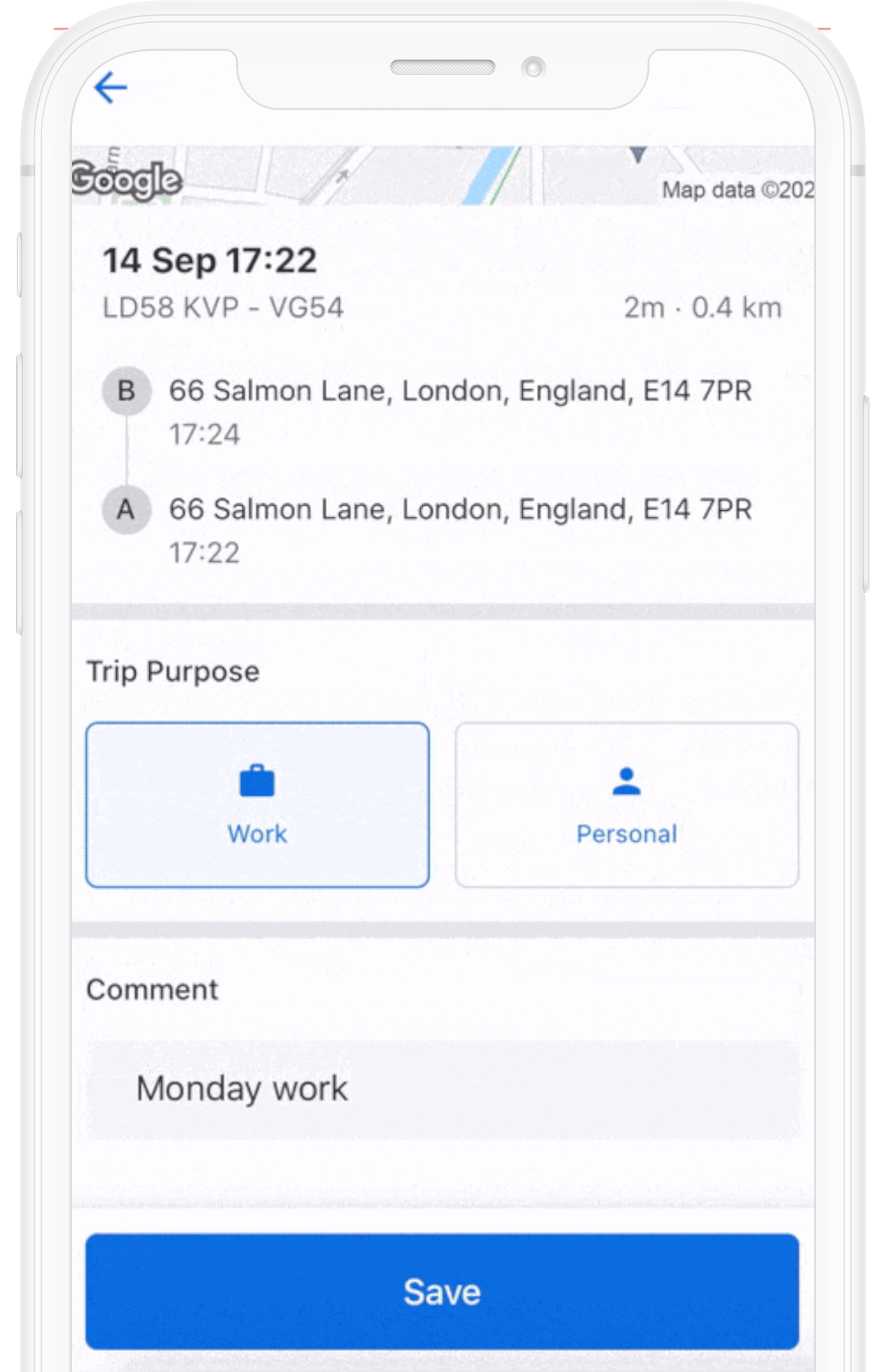
Tap Trip Log from the Samsara Driver App dashboard. By default, Trip Log displays new trips awaiting review.
-
Tap the trip you want to review.
Each trip has the following information populated:
Start/End Address
Start/End Time and Date
Duration
Distance
-
Enter a trip purpose and any relevant information in the comments section.
For German customers, trip purposes marked as Work must also include the destination company, business partner name, and the reason for travel.
After you save the annotated trip, the trip is available for edit in the Reviewed section for 30 calendar days (or 7 calendar days for German customers) following the trip itself. An edit log is included in the exported report.
To export the business mileage report from the Samsara Driver App:
Tap Export
Select the report time range.
Input an email address to which you want to send the report.
(Optional) Save the email address for future use.
Send the report.
Fleet Administrators can also view and export asset or driver specific business mileage reports from the Trip History Report:
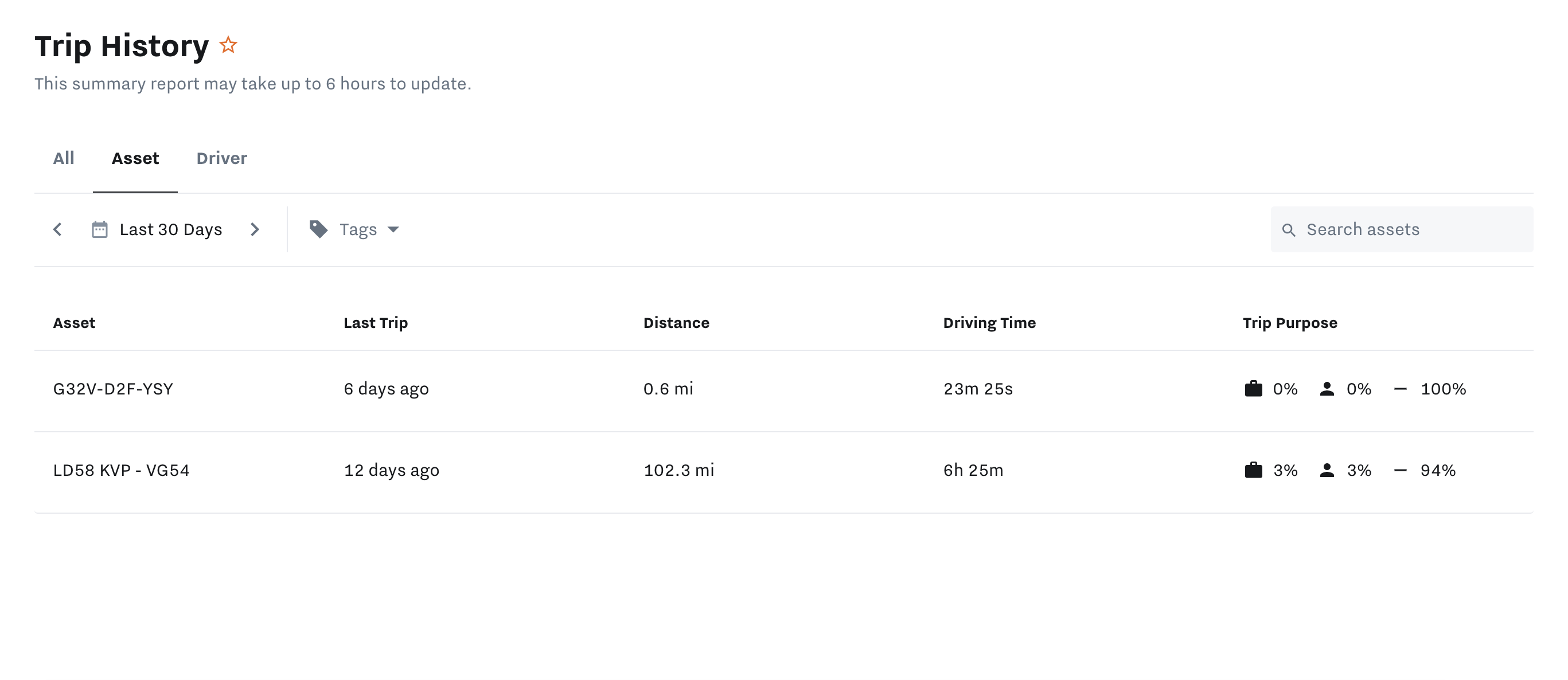 |
The report includes information about the trip as defined in the following table:
Field |
Information Available |
|---|---|
Trip |
|
Driver |
|
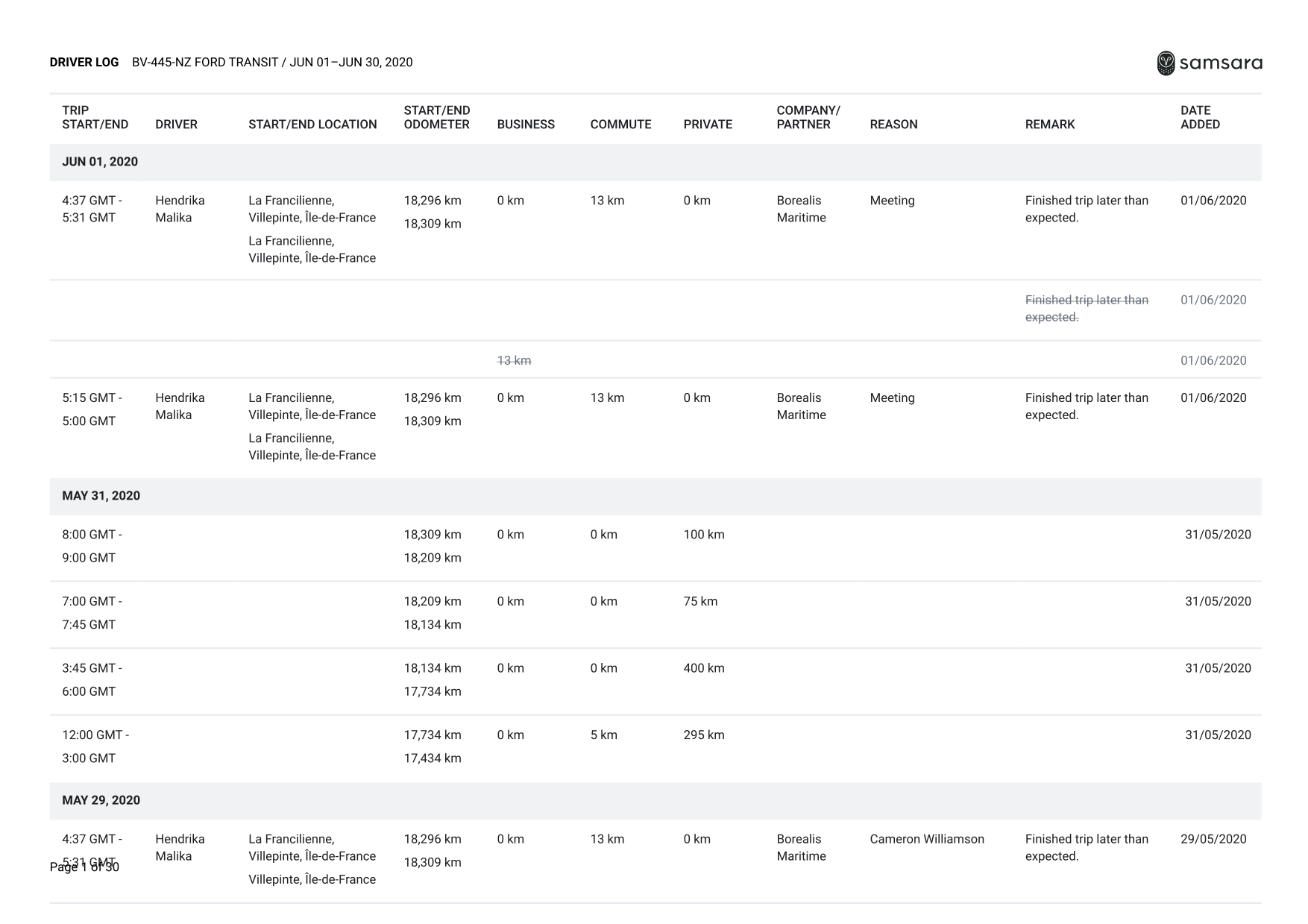 |
Start and end odometer readings for trips are determined by using ECU-reported odometer readings when possible. For vehicles where ECU-reported odometer is not available, Samsara uses a manually provided odometer reading combined with GPS readings to determine the distance traveled. You can update the manual odometer of the vehicle directly from the app. For the purposes of the report only, Samsara adjusts the start/end odometer of trips for the difference between the updated manual odometer and GPS-derived odometer. This does not impact the overall ratio of trip purpose assignment.
To edit the odometer, tap Vehicle from the Samsara Driver App home screen, select the odometer, and edit as needed.

Comments
0 comments
Please sign in to leave a comment.